OOmnilyra

AI Papercut Generator for Layered Illustrations

Plan paper layers, cut contours, bridges, negative space, palette, and shadow depth for posters, cards, editorial art, and dimensional craft concepts.

Visible layer separationCut-friendly silhouettesFlat or shadow-box styles

AI Papercut Generator prompt examples

Explore graphic, dimensional, and editorial approaches while keeping every scene readable as layered paper.

How to structure an AI papercut prompt

Papercut prompts work best when layer construction and edge behavior are as clear as the subject.

Subject

Name the focal forms, silhouette details, paper colors, material finish, and number of layers.

Scene

Describe backing paper, frame, foreground-to-background order, negative space, and decorative density.

Light

Choose flat illumination for graphic work or directional light for visible layer shadows and depth.

Output

Request a greeting card, poster, shadow box, editorial opener, packaging panel, or craft concept.

How to use the AI Papercut Generator

Translate the idea into a small number of readable layers before adding material and presentation detail.

01

Map the layer order

List foreground, middle, and background forms, including which colors and silhouettes belong to each plane.

02

Set cut and shadow behavior

Choose crisp or handmade edges, connected bridges, paper grain, layer spacing, and light direction.

03

Adapt the final layout

Review thin pieces and negative space, then prepare the concept for a card, poster, frame, or digital composition.

AI papercut illustration use cases

Layer-aware prompts support both polished digital artwork and early planning for physical paper projects.

Cards and invitations

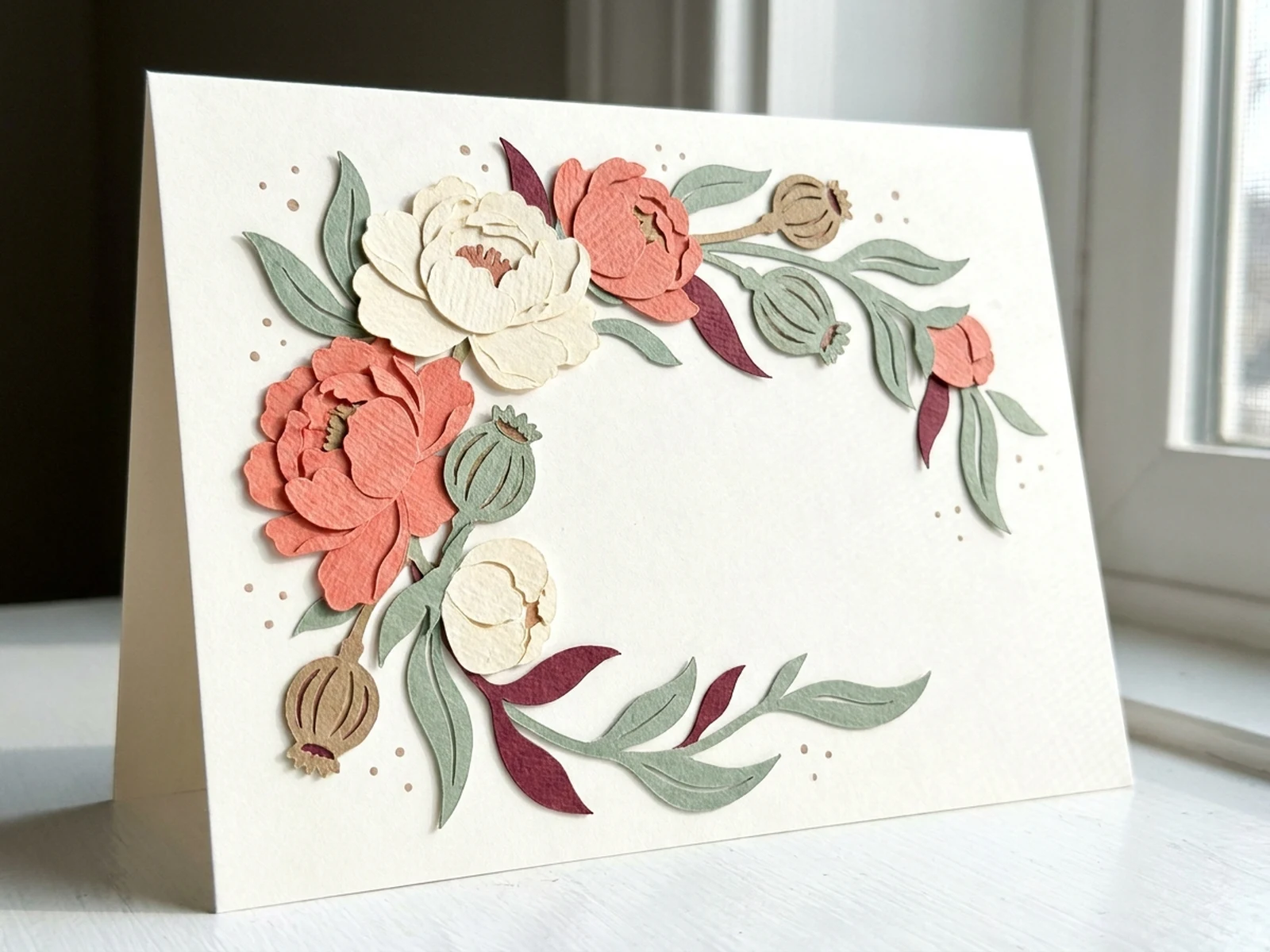
Create floral borders, seasonal scenes, and central windows with practical space for final type.

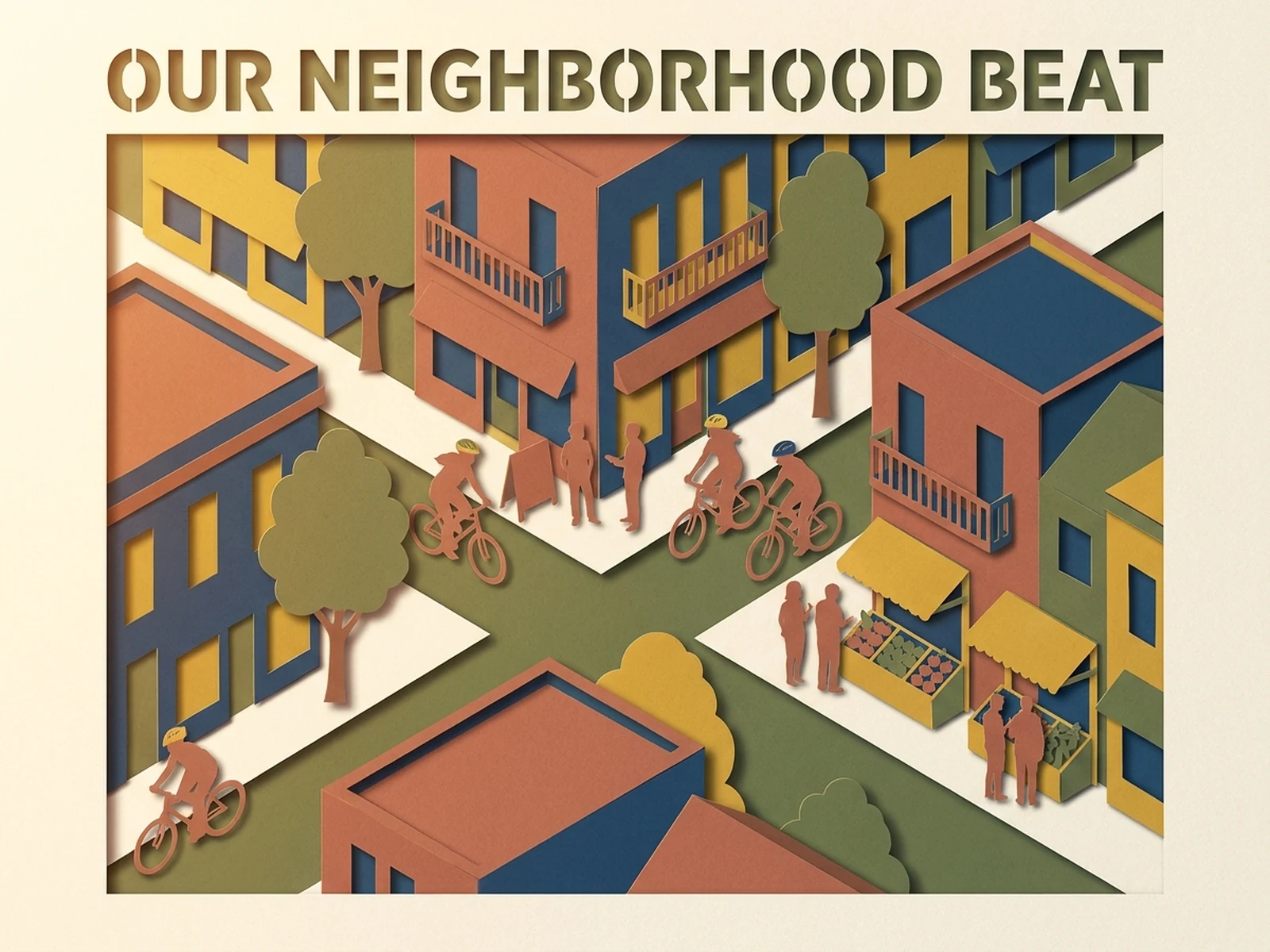
Editorial and campaign art

Build recognizable metaphors and dimensional scenes for articles, social posts, and posters.

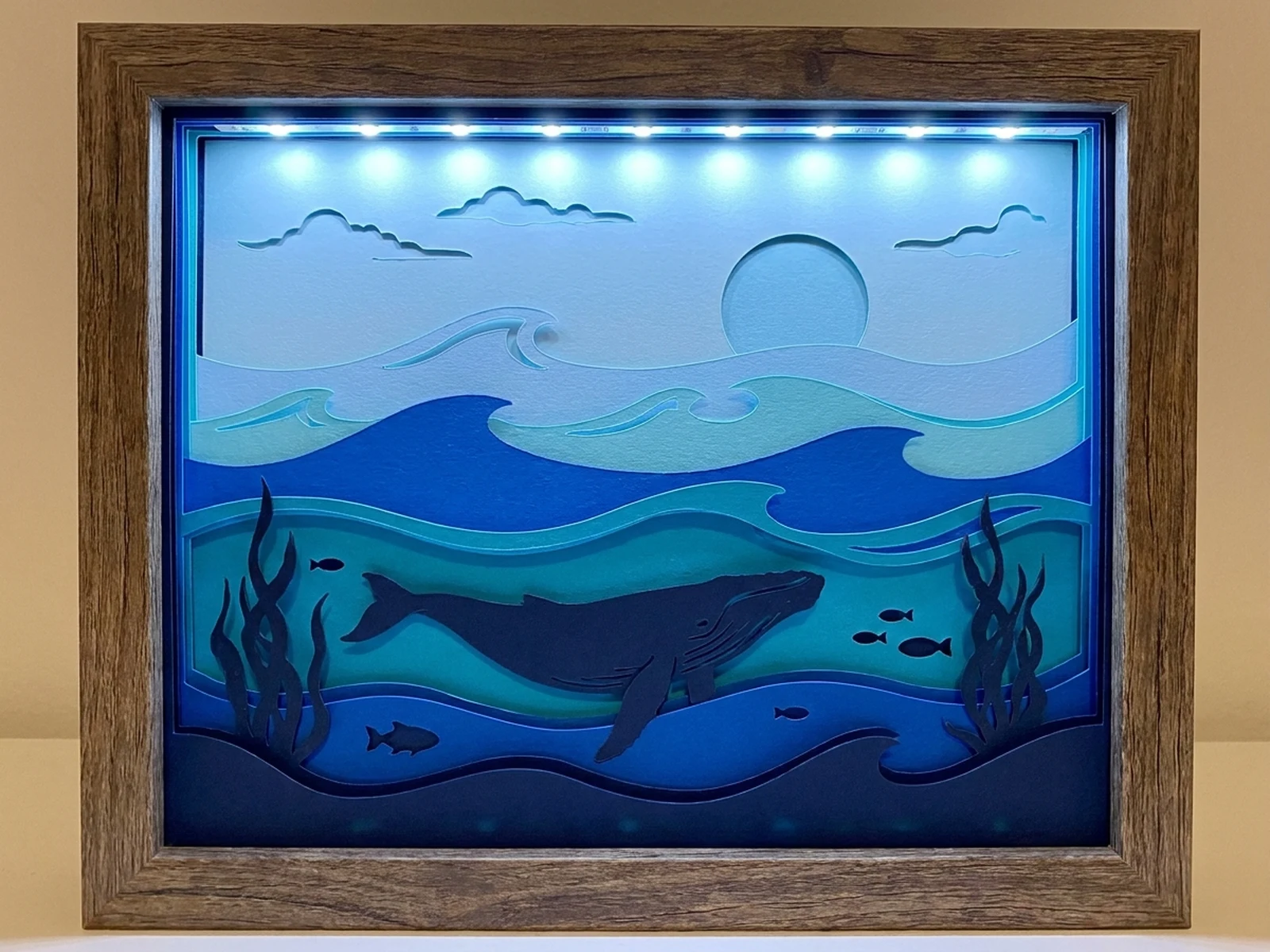
Shadow-box planning

Explore layer depth, silhouette overlap, color sequence, and frame composition before hand assembly.

Why choose Omnilyra for papercut concepts

The structured workspace turns a broad style request into controllable material and layer decisions.

Layer-specific prompts

Define plane order, spacing, edges, bridges, and palette instead of relying on a generic craft filter.

Reference-friendly development

Use permitted sketches or palette boards to keep motifs consistent across a collection.

Multiple presentation styles

Move between flat graphic cuts, tactile editorial art, and dimensional shadow boxes.

Try more image workspaces

Continue exploring tactile illustration and layout tools already published on Omnilyra.

AI Papercut Generator FAQ

Can the AI Papercut Generator make physical cutting templates?

It is best for visual concepts and layer planning. Review bridges, detached pieces, scale, and machine or hand-cut tolerances before treating any image as a production template.

What should a papercut prompt include?

Include subject silhouettes, number and order of layers, paper colors, grain, edge style, negative space, light direction, and final format.

How do I make the layers look dimensional?

Specify spacing between layers, directional raking light, shadow softness, backing depth, and a framed shadow-box presentation.

Can I upload a sketch?

Yes, if you have permission to use it. A sketch can guide the main contour, layer divisions, and layout while the prompt controls material and lighting.