Turn a product feature brief and optional references into short demo video concepts with a clear opening, action, benefit moment, and final frame.
AI Video Generator
Turn a product story, campaign idea, or scene concept into a ready-to-use video direction. Write a prompt, add reference images when needed, and create product demos, ad videos, social clips, storyboards, and launch teasers in one workspace.
Text to video generatorReference image uploadsProduct demos, ads, and social clips
Popular AI video generators
Plan short social clips with clear opening frames, vertical composition, pacing, motion, and final frames for platform-native campaigns.
AI short video generator
Create short advertising video directions for paid social tests, product hooks, offer moments, and campaign variants.
AI ad video generator
Turn rough video ideas into storyboard-ready directions with shot order, visual continuity, mood, framing, and production notes.
AI storyboard generator
Explore AI video generators by use case
Choose the video workspace that matches a product demo, ad concept, short social clip, or storyboard planning task.
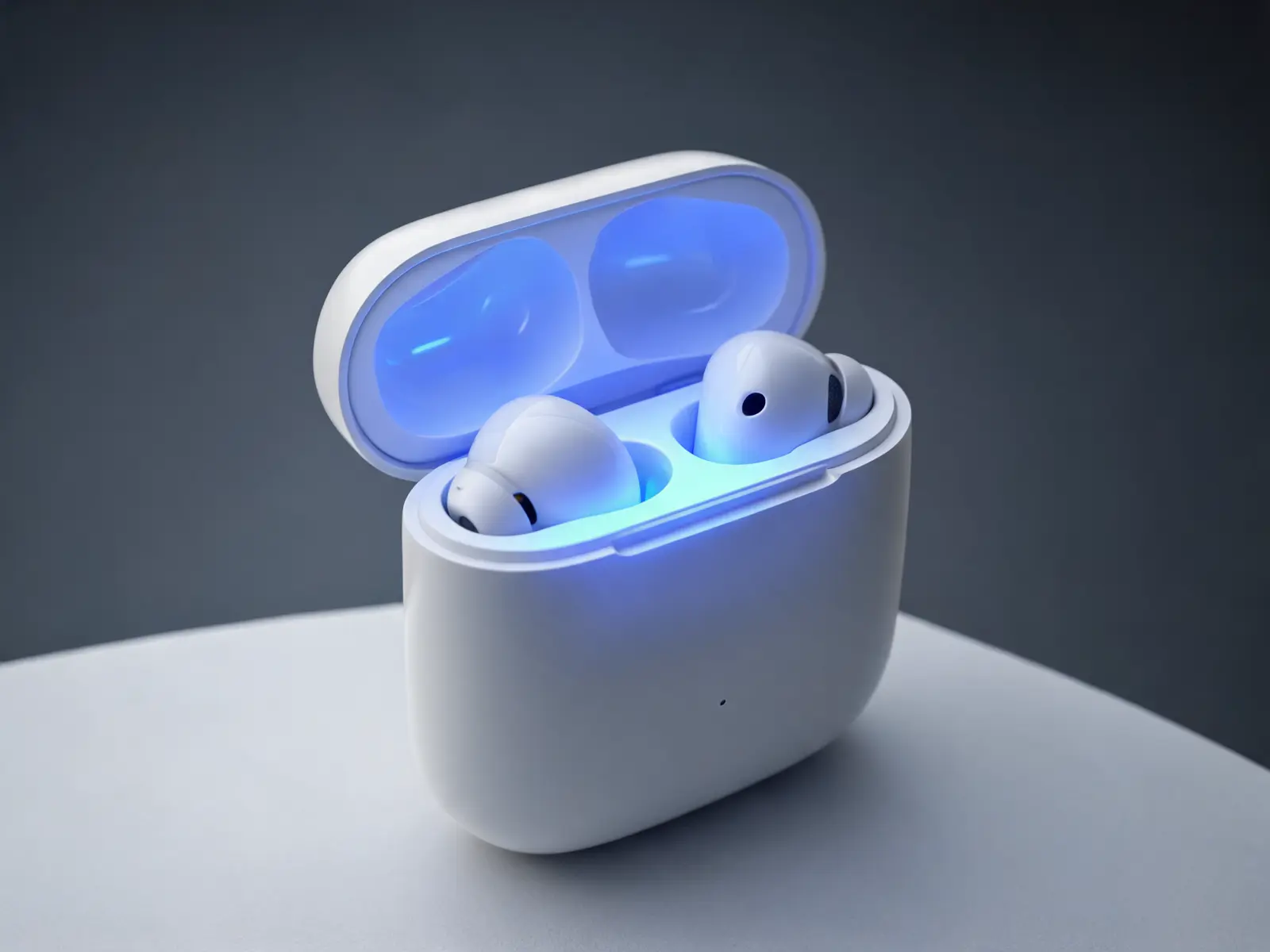
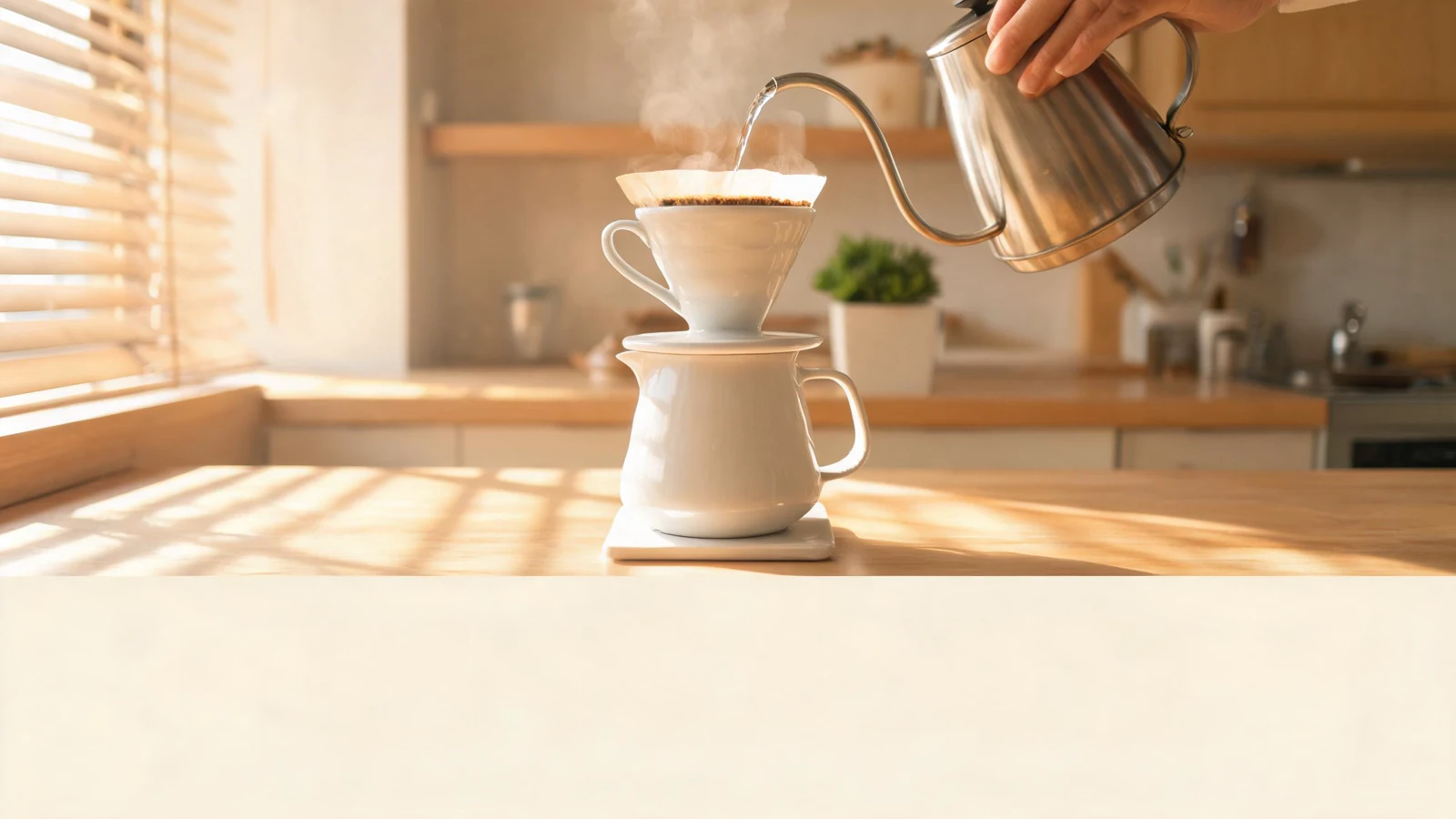
Create product demos, paid ad concepts, launch videos, and short campaign clips from one video brief.
Explore generators
Product and ad video generators
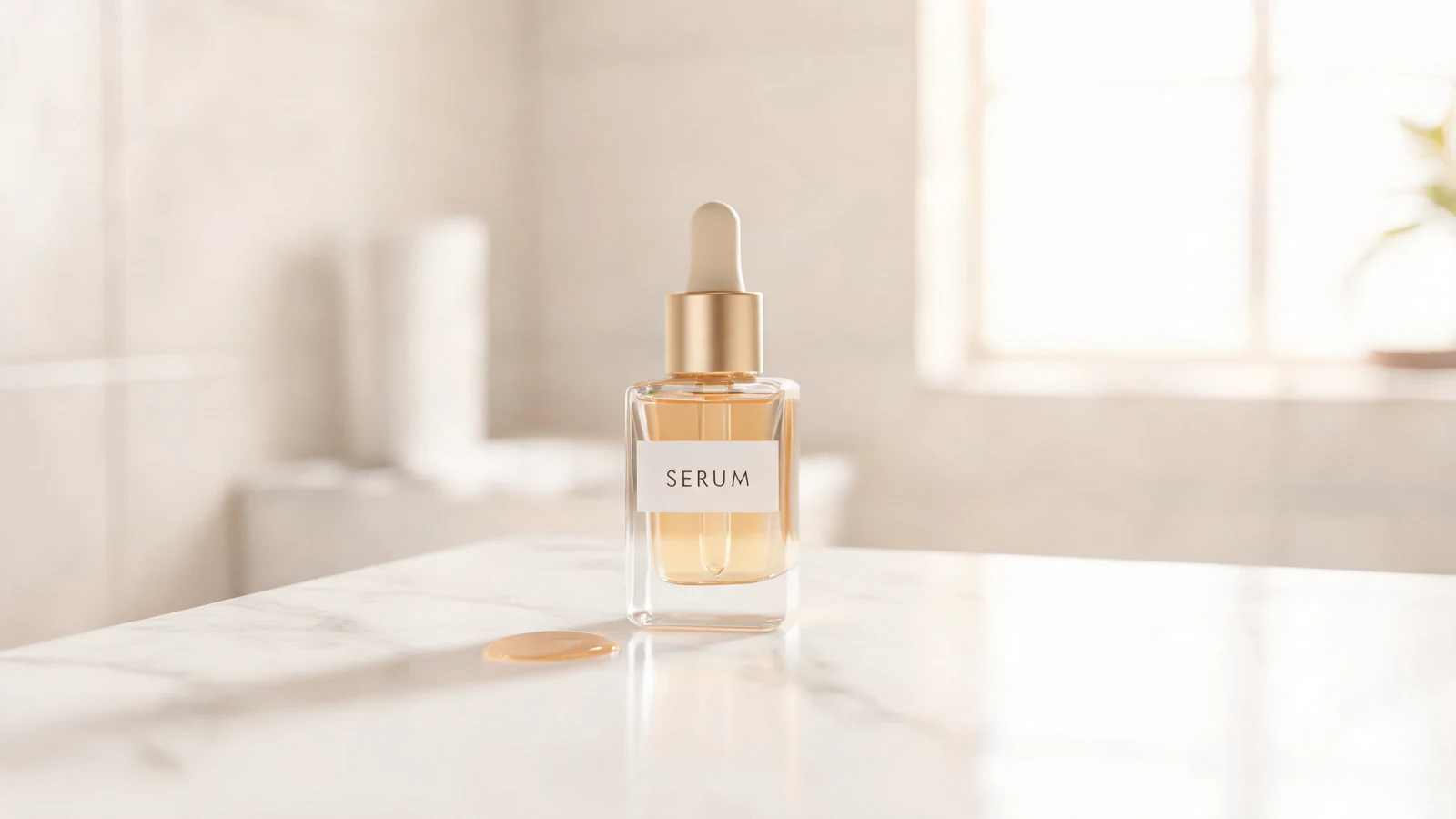
Plan fast social clips with a clear hook, pacing, first frame, and reusable final frame.
Explore generators
Short-form and social video generators
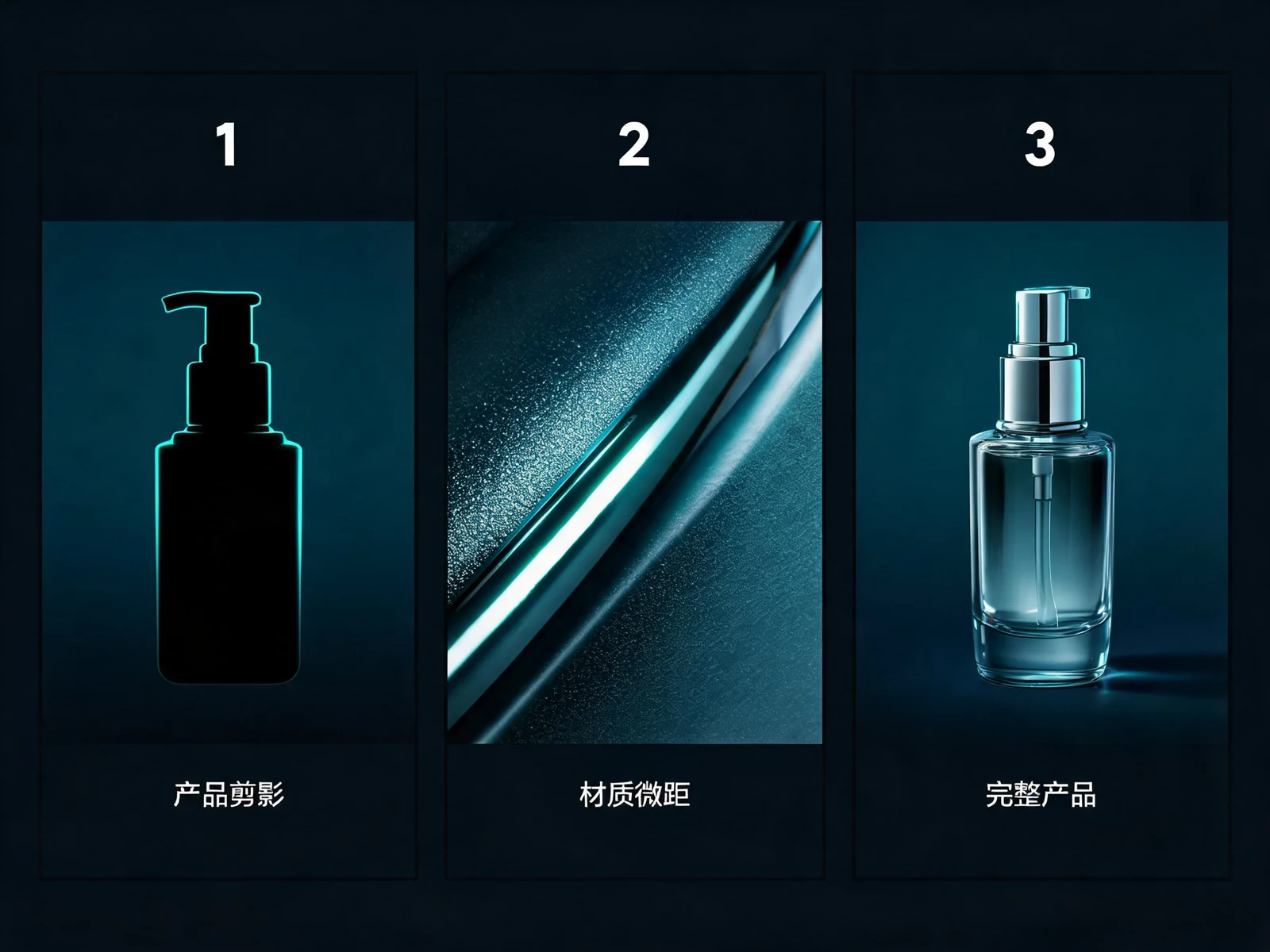
Use video prompts to plan scene order, camera movement, story beats, and production-ready directions.
Explore generators
Storyboard and creative planning generators
AI video prompt examples
Product demo clip
A product demo for wireless earbuds, macro opening frame, smooth orbit around the case, bass pulse light effect, clean studio scene, focus on noise cancellation and comfort.
Describe the opening frame, motion, and main product benefit.
Launch teaser
A cinematic teaser for a new coffee blend, coffee beans falling in slow motion, warm morning light, quick cuts, final frame on the package close-up.
Name the opening image, motion rhythm, and final frame.
Social ad concept
A fitness app ad, phone screen reveal, runner at dusk, kinetic camera push, energetic pacing, final frame with clean space for offer text.
Leave a clear final frame when the video needs campaign copy.
How to write an AI video prompt that works across models
A reusable video prompt should define the first frame, camera movement, scene sequence, and final frame clearly enough for Omnilyra and familiar video workflows such as Veo, Seedance, Sora, and Kling AI.
Opening frame
Describe the first visual clearly so the clip starts from a controlled product, scene, or character moment.
Motion and camera
Name camera movement, subject movement, cuts, transitions, and the rhythm of each visual beat.
Scene sequence
Describe what changes from beginning to middle to final frame, especially for demos, reveals, before-and-after ideas, and ads.
Final frame
Plan the ending for offer copy, product focus, brand mark, clean loop, or a reusable storyboard reference.
Related prompt guides
Read a practical tutorial before you turn this page into a reusable generation workflow.
AI Short Video Prompt: 6-Part Template + ExamplesCopy a six-part AI short video prompt template with first frame, subject, motion, pacing, audio, final frame, examples, and a quality checklist.Read guideAI ad creative testing workflow for paid socialPlan AI ad creative tests with hypotheses, prompt variants, visual hierarchy, placement rules, and a simple readout workflow for paid social campaigns.Read guide
How the AI video generator workflow works
Describe the video goal
Start with the product, person, scene, or offer, then add the hook, target audience, channel, and visual style.
Add references and settings
Choose model, style, aspect ratio, resolution, duration, audio mode, and optional reference images before generating the video direction.
Generate reusable variations
Keep the prompt, settings, and references together so one campaign can produce consistent video variants.
Create campaign-ready videos from prompts and references
Text prompt to video direction
Describe the subject, selling point, opening frame, camera movement, scene sequence, and final frame so the video generator starts from a clear brief.
Reference-guided continuity
Upload reference images when the video needs a consistent first frame, product appearance, scene mood, layout, or brand cue.
Videos for every marketing channel
Create video directions for product demos, paid ads, social clips, launch teasers, landing page motion, and storyboard exploration.
Where AI video generation works best
Show motion, sequence, and change
Video works best when the idea needs a product reveal, camera move, before-and-after moment, story beat, or timed benefit.
Create ready-to-use motion assets
Product demos, ad videos, social clips, launch teasers, and storyboard concepts need clear movement, pacing, and final frame intent.
Build reusable campaign motion
Set the opening frame, camera language, scene order, and final frame first, then generate consistent video variants for the same campaign.
Explore related AI image workflows
AI Image Generator OnlineGenerate product photos, ad creatives, social posts, posters, and thumbnails from a text prompt or reference images. Keep the brief, model, ratio, and reusable variations together in one workspace.AI product photo generatorCreate ecommerce hero shots, PDP details, catalog images, and lifestyle scenes from a product brief and optional reference images.AI ad creative generatorGenerate paid social image concepts from a clear campaign hook, product proof, message area, and placement-aware crop before final design.AI content generation pricingCompare monthly subscriptions and creative credits for AI content generation.
AI video generator FAQ
What can I create with the Omnilyra AI video generator?
You can create product demos, short social clips, ad videos, storyboards, launch teasers, landing page motion, and campaign video concepts.
Can I generate videos from text prompts and reference images?
Yes. You can start from a text prompt and add reference images when you need stronger control over the first frame, product appearance, scene mood, or visual continuity.
Which video models or workflows can these prompts support?
The prompt structure is designed to work across Omnilyra video workflows and familiar model names such as Veo, Seedance, Sora, and Kling AI.
Should I write aspect ratio, resolution, duration, or audio into the prompt?
No. Set aspect ratio, resolution, duration, and audio mode in the workspace controls. Use the prompt to describe the subject, scene sequence, camera movement, style, and final frame.
Can I make product demos, ad videos, and social clips?
Yes. The workflow supports product demos, paid social ads, launch teasers, short social clips, and storyboard-ready campaign concepts.
What should I do if the motion is unclear?
Add more detail about the opening frame, subject movement, camera movement, scene order, pacing, final frame, and what the video should communicate.