OOmnilyra

AI Add Glasses to Photo for Style Previews

Try optical or fashion frames on yourself or someone who authorized the edit. Preserve the person's identity and treat every result as a styling visualization, not proof of appearance, prescription, or a real purchase.

Authorized portrait previewsFit and perspective controlNo identity or prescription claim

Add-glasses prompt examples

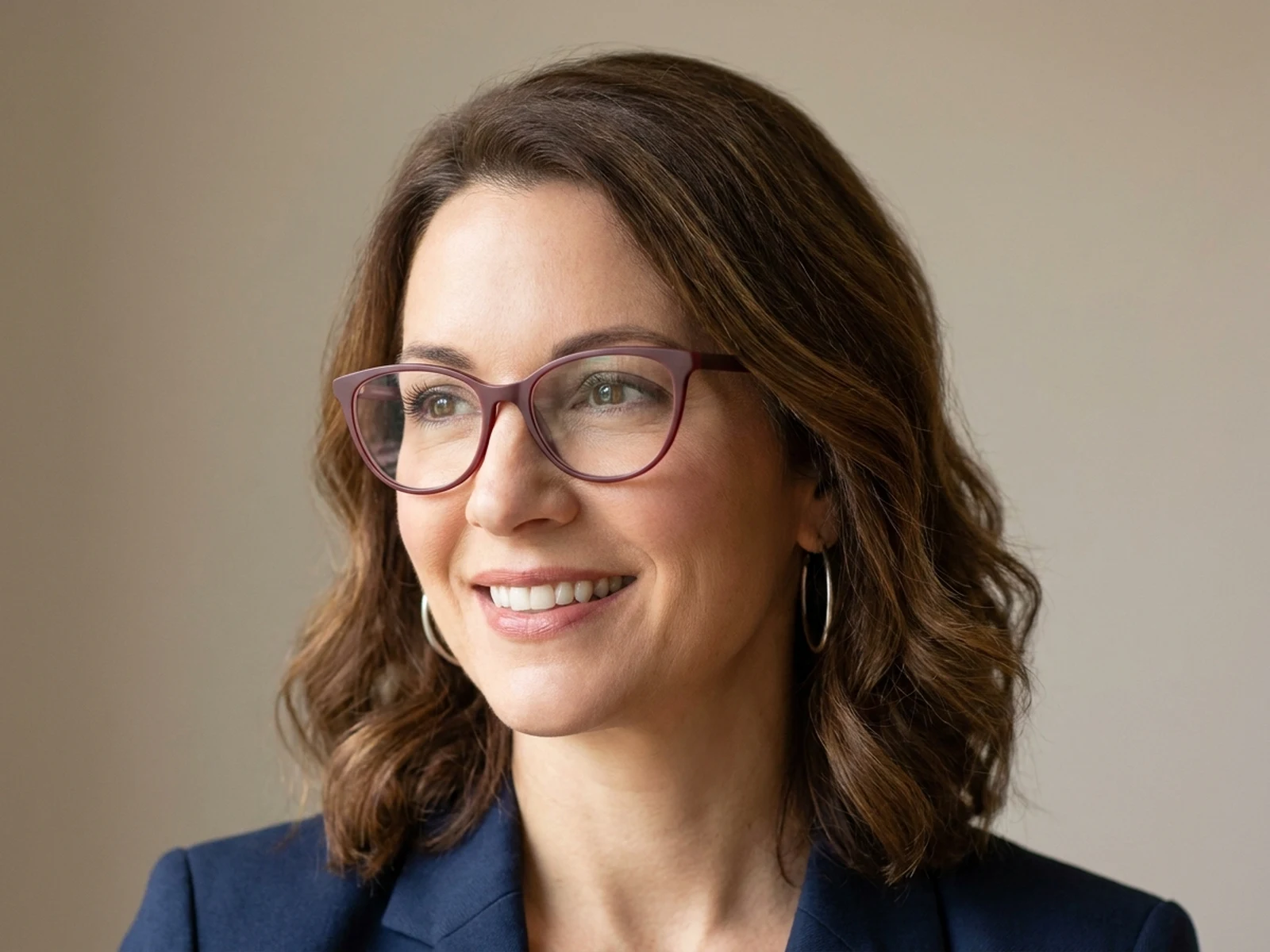
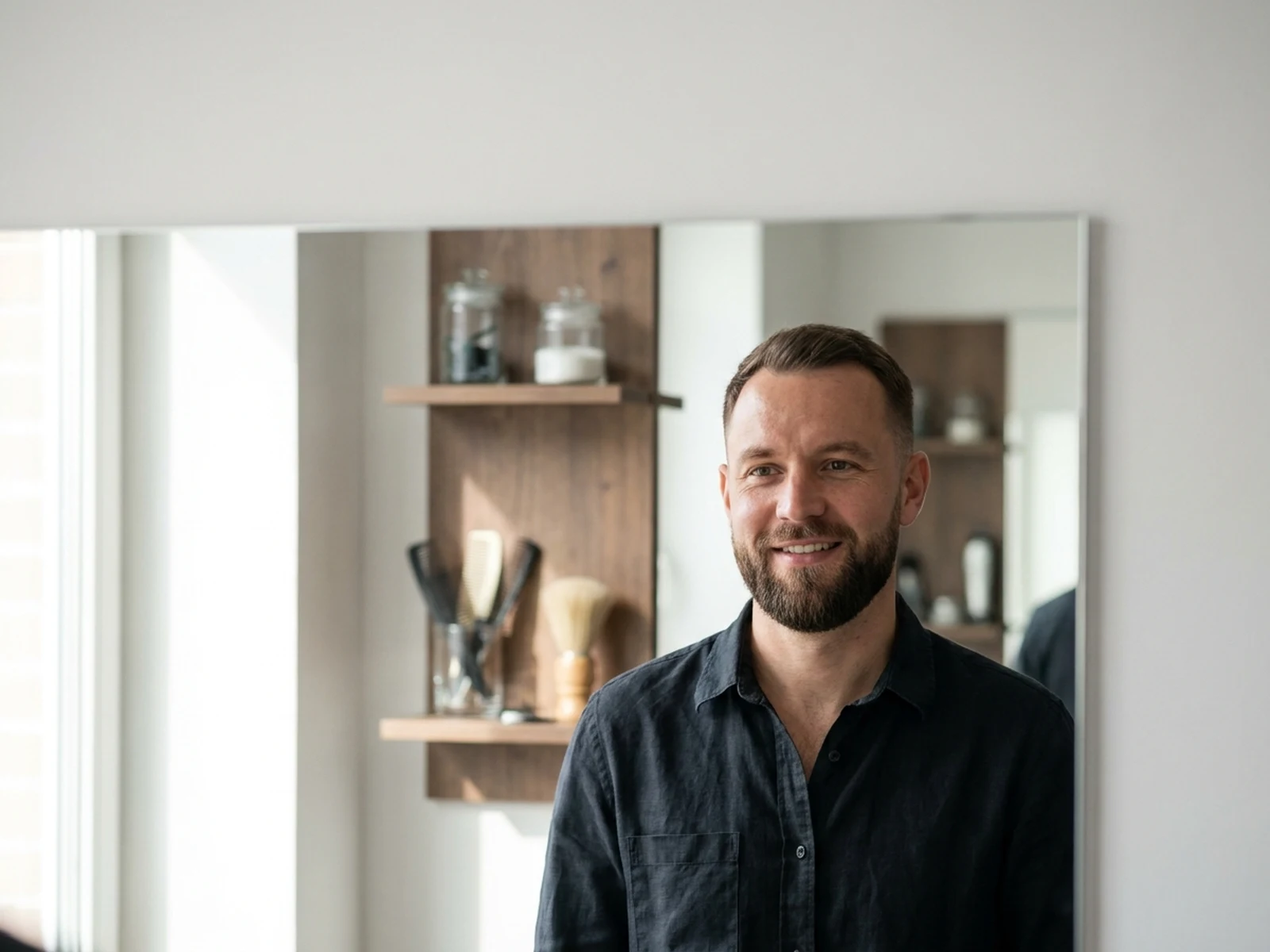
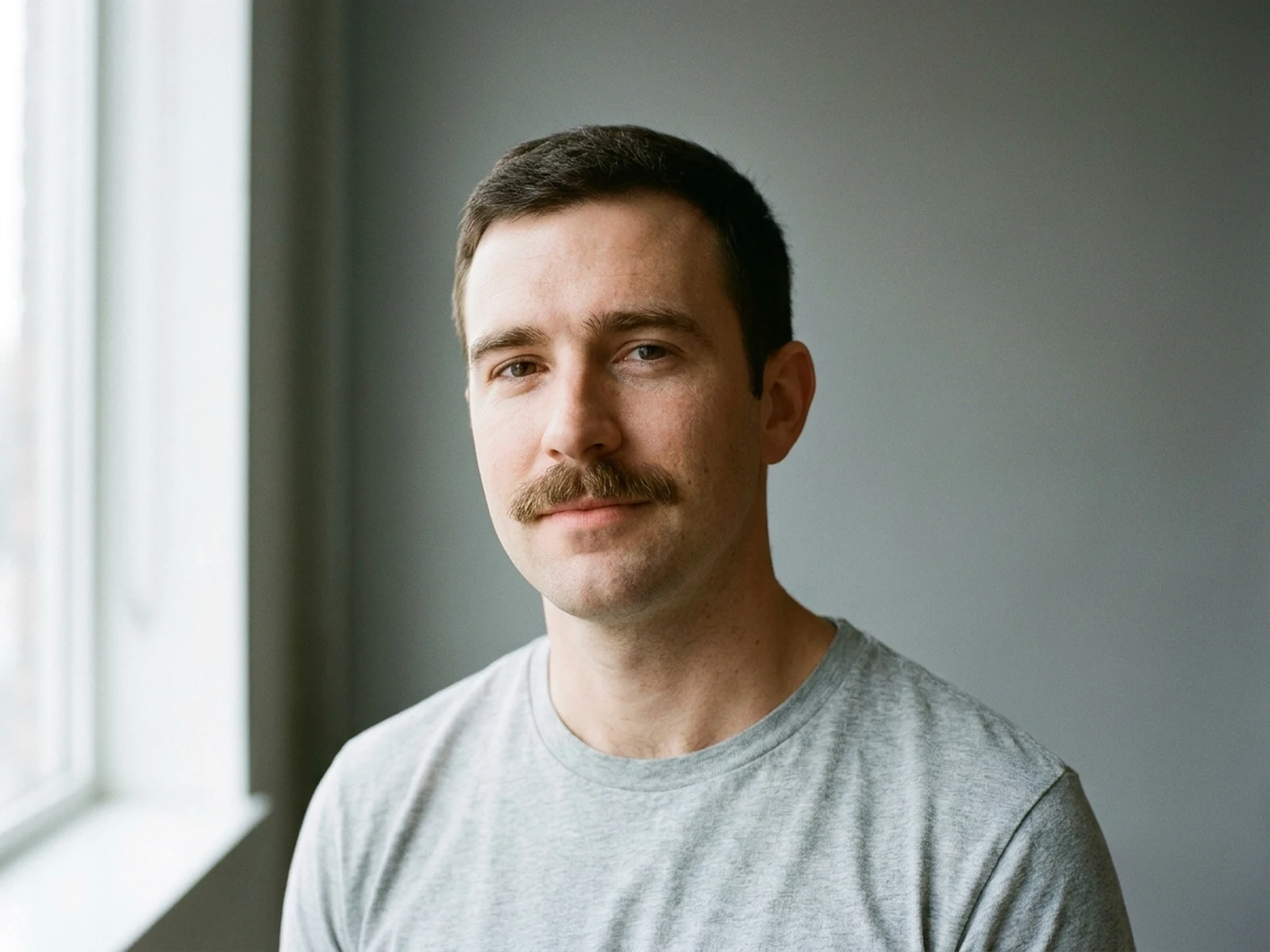
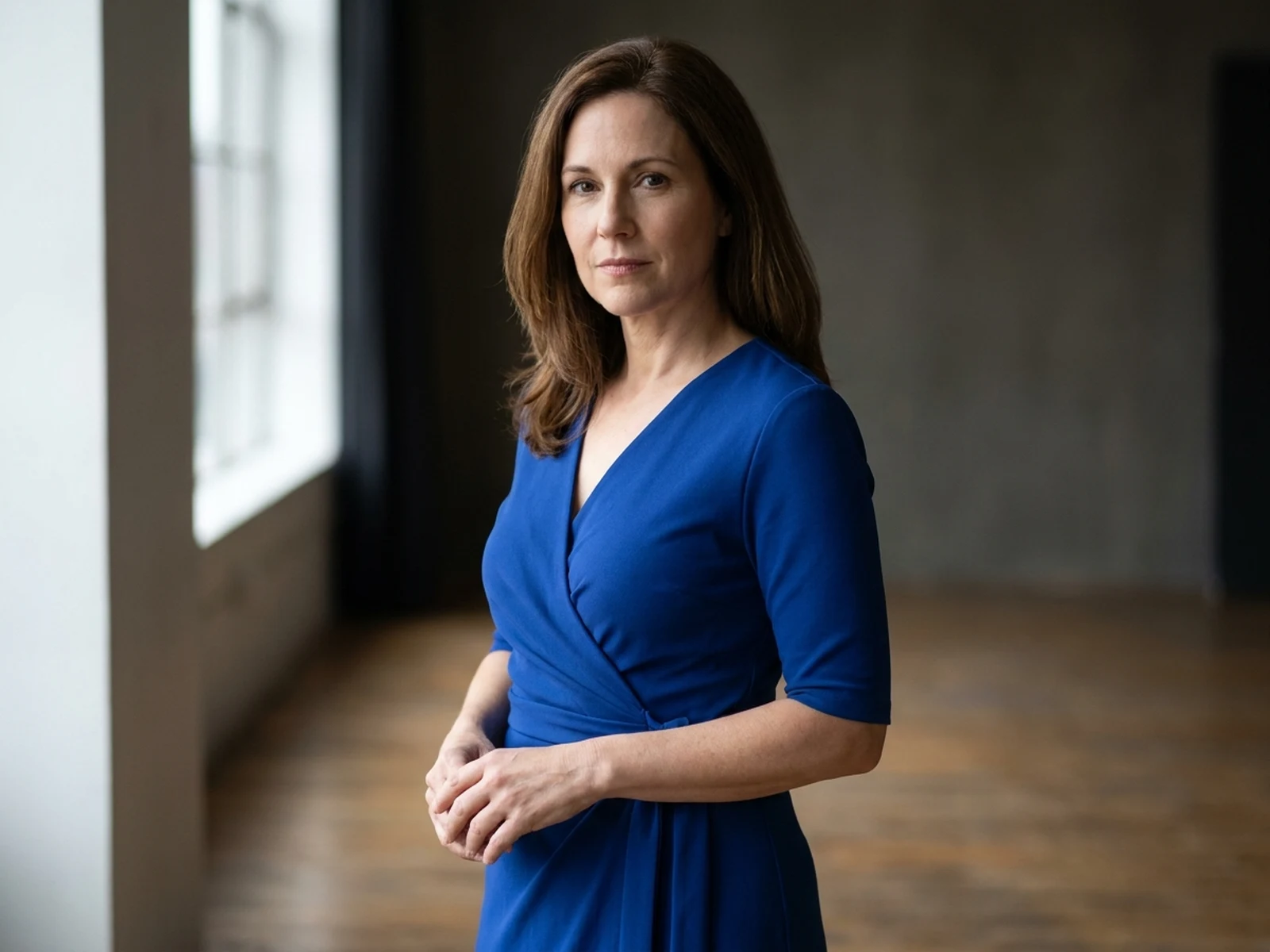
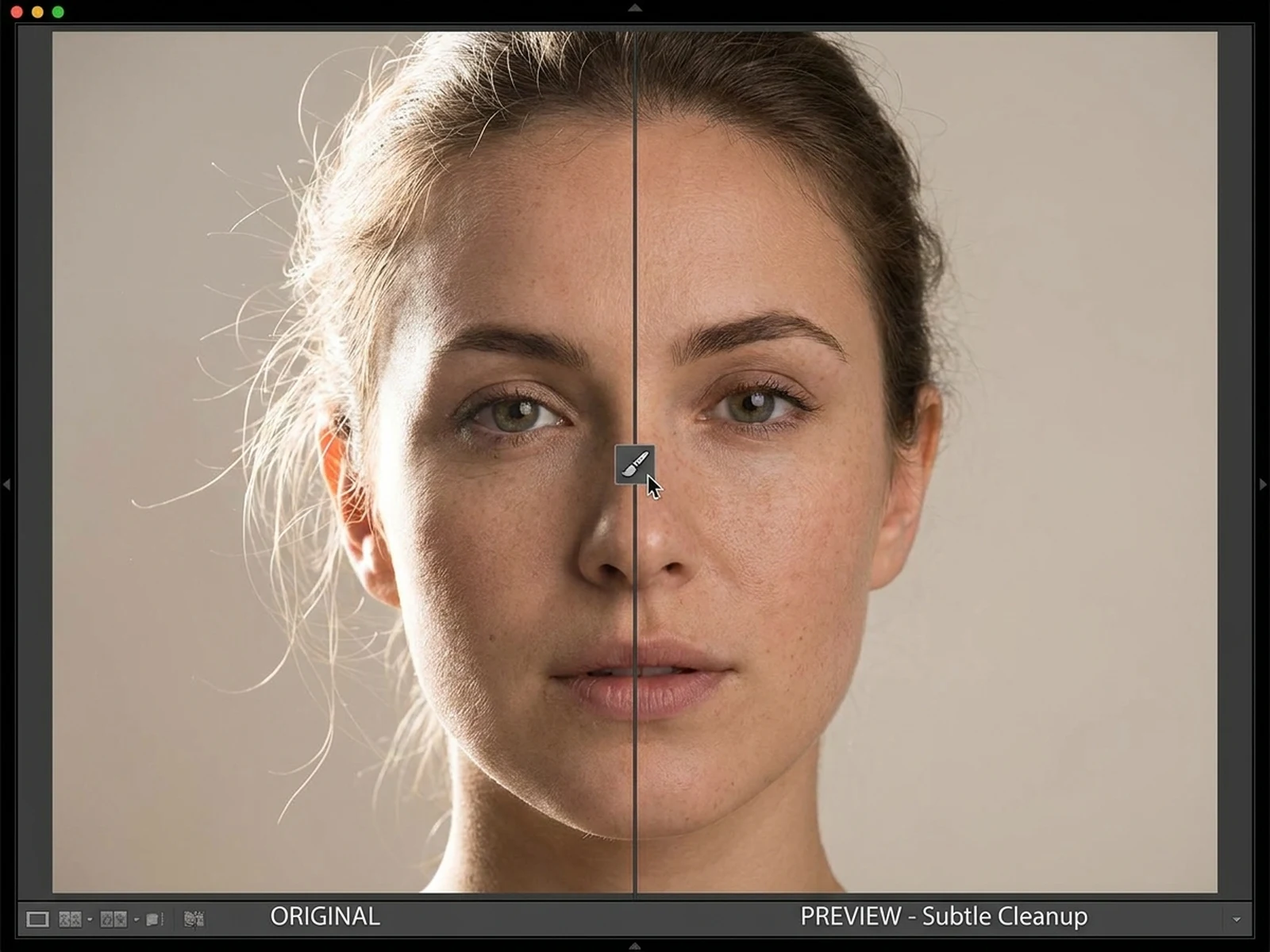
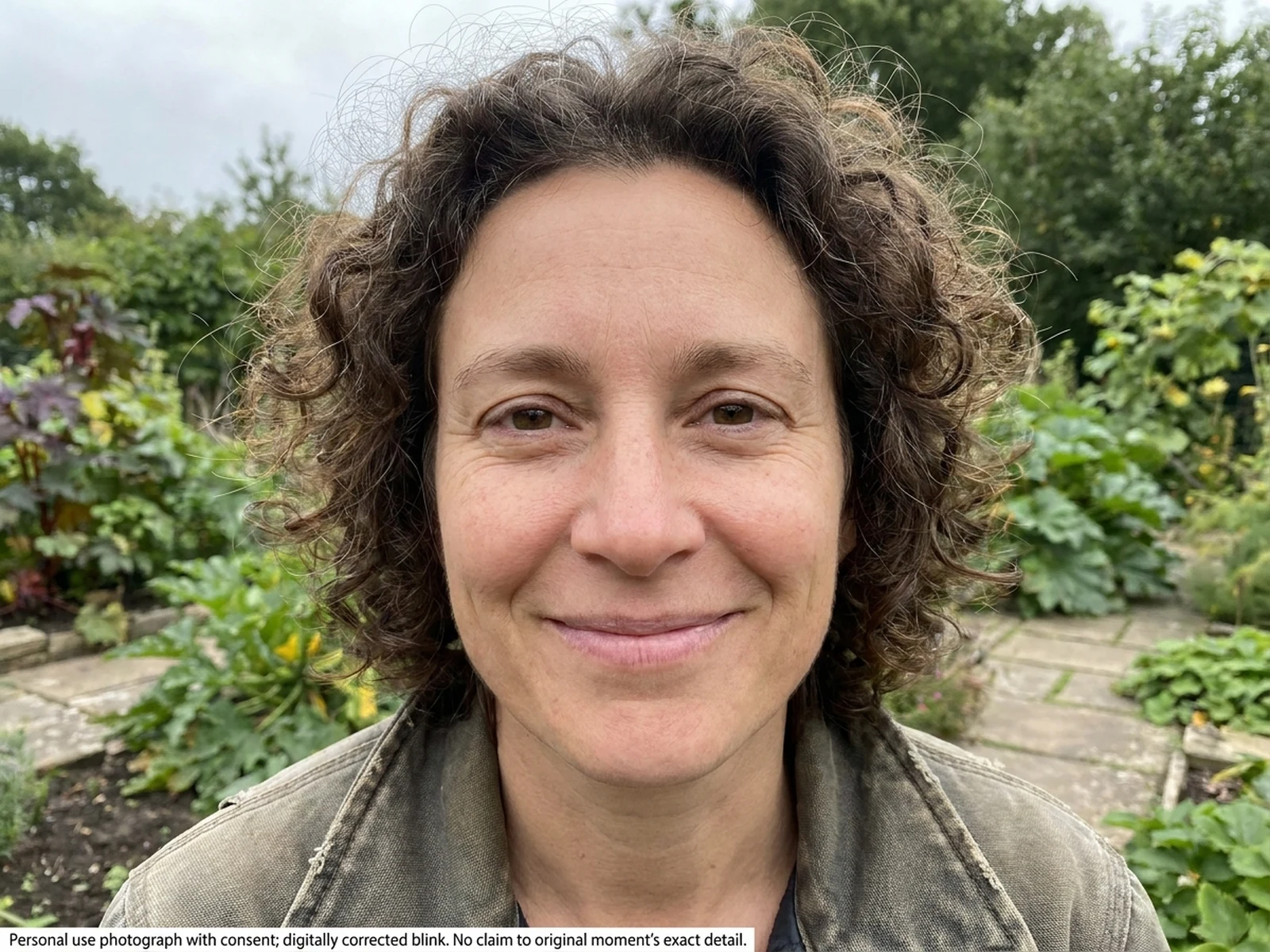
Compare frame shapes and materials while preserving the authorized portrait's face, gaze, pose, and scene.

How to structure an add-glasses prompt

Describe both the frame design and the facial fit while protecting the authorized source portrait.

Subject

Preserve identity, face, expression, gaze, hair, and head angle; specify frame silhouette, material, color, bridge, and temples.

Scene

Keep the source clothing, background, objects, and context unchanged unless the person authorized a broader edit.

Light

Match frame highlights, lens transparency, environmental reflections, nose-pad shadows, and light direction without hiding the eyes.

Output

Set a crop showing frame fit and label the result as a style preview without brand, prescription, or authenticity claims.

How to add glasses to a photo with AI

Use an authorized portrait, define a realistic frame fit, and compare styles without altering identity.

01

Confirm photo permission

Use your own image or obtain the depicted person's consent for this eyewear edit and its intended use.

02

Describe frame and fit

Specify shape, width, material, color, bridge placement, temple direction, lens clarity, reflections, and source details to retain.

03

Review the preview

Inspect eye visibility, frame symmetry, perspective, ear alignment, shadows, and face preservation before sharing it as an edit.

Glasses photo preview use cases

Use generated eyewear for personal and authorized styling exploration, not medical or identity claims.

Personal frame comparison

Try round, square, cat-eye, or browline silhouettes on your own portrait before an in-person fitting.

Authorized styling boards

Prepare several frame directions for a consenting client while keeping their face and scene consistent.

Character wardrobe planning

Add unbranded eyewear to an original or authorized character portrait as part of a visual development board.

Why choose Omnilyra for glasses previews

Omnilyra combines frame-specific prompting with source-preservation and flexible portrait outputs.

Detailed frame control

Direct silhouette, rim width, material, color, bridge, temples, lenses, highlights, and shadows.

Natural portrait integration

Preserve eyes, eyebrows, identity, head angle, expression, hair, light, and background.

Honest preview framing

Results are styling visualizations, not proof of identity, a prescription, product fit, ownership, or purchase.

Try more authorized appearance workspaces

Continue with published tools for facial hair, hairstyle, and portrait perspective previews.

AI Add Glasses to Photo FAQ

Can I add glasses to another person's photo?

Only when that person authorized this edit and the intended sharing context. Otherwise, use your own portrait or an original character.

Can the preview recommend a prescription?

No. It is a visual styling tool, not an eye exam, medical device, optical measurement, or prescription service.

How do I make glasses look realistic?

Specify bridge placement, frame width, temple direction, lens transparency, source-matched highlights, reflections, contact shadows, and unobstructed eyes.

Does the edit prove someone owns or wore those glasses?

No. The result is generated and must not be presented as proof of identity, ownership, purchase, prescription, or real-world appearance.